I'm working on a 52-page document with hyperlinks, then my boss says I should remove all links in-text. Instead of spending hours removing each and every link manually, a simple Google search renders a very easy solution:
From
Microsoft Support:
How do I remove a hyperlink without losing the display text or image?
To remove a single hyperlink without losing the display text or image, right-click the hyperlink, and then click Remove Hyperlink. To remove all hyperlinks in a document, press CTRL+A to select the entire document and then press CTRL+SHIFT+F9. Note Performing this operation converts all fields, not just hyperlinks, to plain text.
Yey. Here's the funny cartoon since I'm in such a good mood:
Posted in
Nifty Tips,
tech troubleshooting

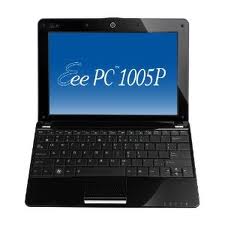
Just found a very simple way to update the BIOS of the EEE PC model 1005P:
Posted in
how to,
Nifty Tips,
tech troubleshooting
After days of figuring out
how to create post summaries in Blogger, trying out a few unsuccessful html tweaks here and there, and even being lured into downloading a suspicious widget that asks for blog account details, I finally got the "Read More" link that I've always wanted. And apparently, it's as simple as clicking a humble little button.
Posted in
blogging,
how to,
Nifty Tips
Have you ever tried cooking tomato dishes where you end up with the tomatoes tasting more like mush than pizzaz?

Posted in
cooking monster,
Nifty Tips

Sometimes even the best, most feature-packed computer acts up. Common culprits include an unprotected computer (read: computer viruses), and another, lesser known miscreant: incompatible hardware devices.
Each hardware component in a computer system has a corresponding device driver. The driver's job is to make sure that communication between the computer and the device is running smooth. When the computer starts acting up, and it's because of a misbehaving device, a driver update may be just the fix you need.
Posted in
how to,
Nifty Tips,
tech troubleshooting
There's a happy list-maker inside all of us. You know which one. It's that little voice in your head that pushes you to make your weekly (or daily) to-do list. The one that finds pleasure even in the most mundane task of doing a grocery list. You can feel it doing little cartwheels of joy whenever you tick off an item from your task list.
Here's something to make your little list-critter a bit happier: apparently there's a nifty Windows command that you can use to create a list, in .txt format, of the contents of any Windows folder.
Posted in
how to,
Nifty Tips,
Windows